Delete a Page in Confluence the Right Way
· 13 min read
“Delete” in Confluence moves the page to the space trash rather than destroying it. It only becomes permanent after a separate purge step.
That distinction matters because the popular advice, “open the page and click Delete,” describes only the first moment of a content lifecycle. The page disappears from normal navigation, but it may still be recoverable, still have historical versions, and still affect links and page hierarchy. A careless purge is where damage happens.
Table of Contents
- What Delete Actually Does in Confluence
- Deleting a Page in the Confluence UI
- How the Trash and Retention Rules Work
- Restoring a Page Before It's Gone
- Permissions and Page Hierarchy Traps
- Deleting Pages Through the REST API
- A Pre-Delete Checklist You'll Reuse
What Delete Actually Does in Confluence
Confluence treats deletion as a two-stage process. The first action moves a page to the space's trash. A space administrator can restore it while it remains there. A later purge removes the page permanently, along with its versions and attached files, as described in Atlassian's page deletion documentation.
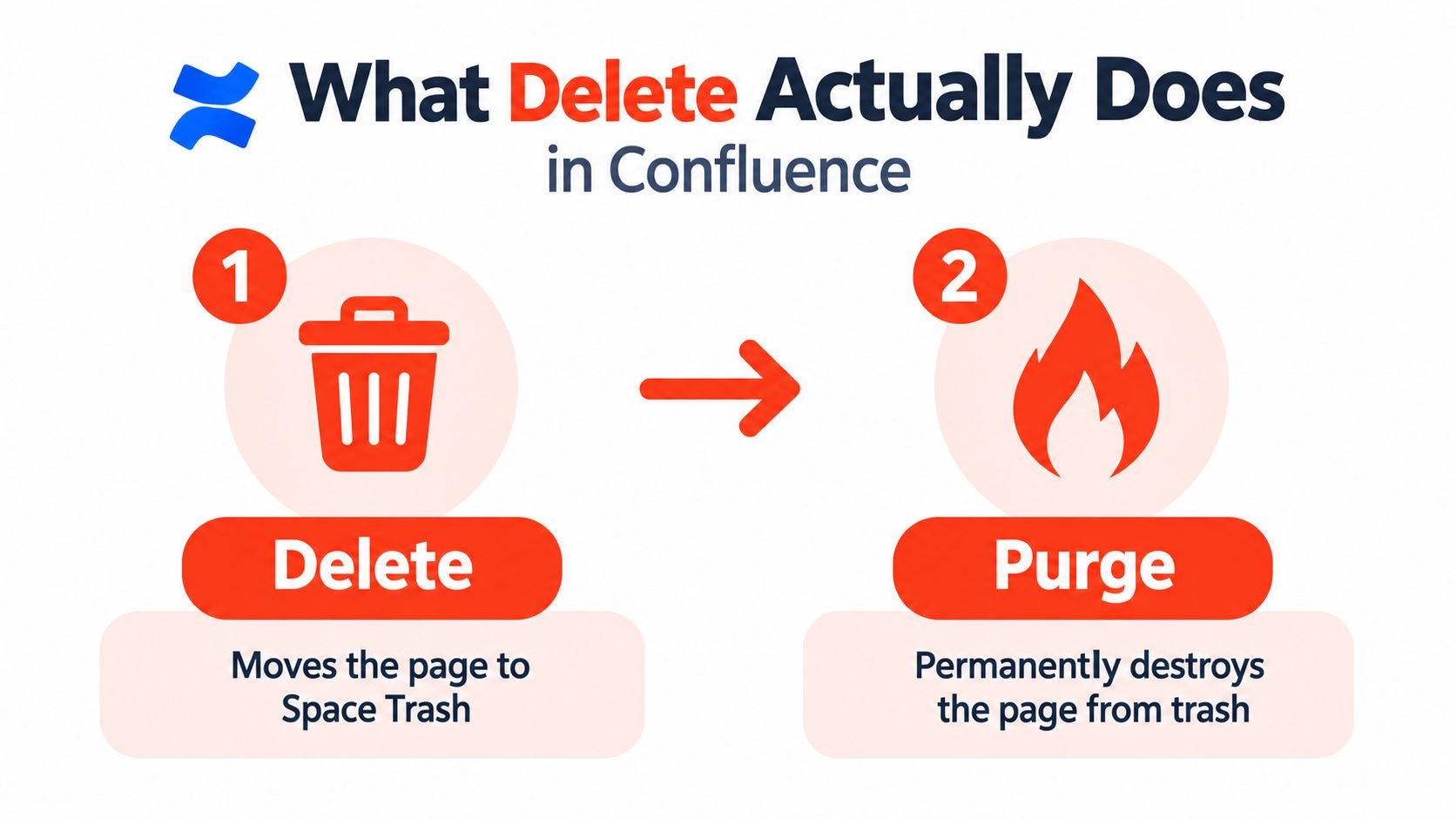
Calling the first action “deleted” is technically convenient but operationally misleading. The page no longer appears in the sidebar or ordinary navigation, yet its page ID remains part of the system's content history until purge. Incoming links, mentions, bookmarks, and macros may still point to it. Child pages can also require separate attention, particularly when the parent is removed from its visible location.
That makes page removal closer to content lifecycle management than a simple housekeeping click. Teams that manage documentation, knowledge bases, or internal operating procedures should treat the action like a small change-management event. The same principle applies to product experience documentation, where the surrounding navigation and user journey matter as much as the page itself.
Version history adds another complication. Deleting a page is different from deleting an individual page version. Atlassian states that version deletion is permanent and cannot be undone. Behavior also differs between older Confluence implementations and newer Data Center documentation, especially around whether later versions are renumbered after one version is removed. Drafts and unpublished updates follow their own lifecycle, too. They shouldn't be assumed to enter the trash in exactly the same way as a published page.
The safe mental model is simple: delete hides and stages content, purge destroys it. Check the page, its hierarchy, its links, and its recovery requirements before you move it beyond the recovery stage.
Deleting a Page in the Confluence UI
In Confluence Cloud, open the page and select the three-dot Actions menu. Choose Archive and Delete, then select Delete in the confirmation dialog. In Data Center and older Server-era interfaces, the path is usually More options > Delete. The wording differs, but the first action still sends the page to the space trash rather than immediately destroying it, as Atlassian explains for Confluence Data Center.
The confirmation dialog is worth reading instead of dismissing automatically. Confluence warns about consequences involving child pages, attachments, labels, and incoming links. The page may vanish from the sidebar immediately, which makes the action feel final, but that visual change is not the same as permanent deletion. The page remains recoverable from trash while the applicable retention process allows it.
The Delete option can be absent for several reasons. The user may lack the required space permission, the page may have restrictions, or the deployment may expose different controls after archival policies are configured. Administrators can also see additional purge controls that ordinary contributors won't have. If the menu doesn't match a colleague's screenshots, don't assume the product is broken. Check the user's permissions and the page's restrictions first.
A short screen recording can help teams standardize this procedure without turning every cleanup task into a support ticket:
Before confirming, inspect the parent and child pages, identify important inbound links, and decide whether the page contains content that should be exported. If the page is a hub, replacing it with a redirect or a maintained landing page may be safer than removing it. A clean sidebar isn't proof of a clean space.
How the Trash and Retention Rules Work
Each Confluence space has its own trash. In Data Center, administrators typically reach it through Space Settings > Content > Trash. Cloud uses its own space administration views for deleted and archived content. The exact labels vary by deployment, but the principle is consistent: trash is a recovery area controlled at the space level, not a universal recycle bin that every user can manage.
The space administrator controls who can view and restore items. That matters in shared spaces where the person who deleted the page may not be able to recover it. It also means teams shouldn't treat trash as a personal safety net. A page may be recoverable, but the person who needs it may not have access to the recovery workflow.
Atlassian's retention controls support two concrete approaches to version history. An administrator can delete versions older than 2 years, or preserve only the 5 most recent versions, removing earlier versions through an automated policy (Atlassian's retention rules). The same framework can purge trash after a defined period, such as removing items that have been there for more than 3 months.
| Aspect | Confluence Cloud | Confluence Data Center |
|---|---|---|
| Initial deletion | Moves the page to space trash | Moves the page to space trash |
| Recovery | Available while the item remains in trash and the user has access | Available while the item remains in trash and the user has access |
| Permanent removal | Requires a purge action or applicable retention process | Requires an administrator purge or applicable retention process |
| Version controls | Can use age or version-count rules | Can use age or version-count rules |
| Risk after purge | Page, versions, and attachments are permanently removed | Page, versions, and attachments are permanently removed |
Don't confuse archived content with trashed content. Archiving changes availability and navigation, while purge is the irreversible removal event. A retention rule can also remove old versions without deleting the current page. That distinction matters during audits, migrations, and legal reviews.
Practical rule: Treat trash as a recovery window, not a backup. If the content matters, preserve it through an approved export or backup process before anyone purges the space.
Restoring a Page Before It's Gone
Restoration works only while the page still exists in trash. In Cloud, the person handling the recovery can open the space settings, use the content tools for Trash, locate the page, and choose Restore. When the restore succeeds, Confluence returns the page to its original location and preserves its hierarchy where the relevant content remains available.
Data Center exposes the equivalent recovery workflow through Space Admin > Trash. The permission model can differ from Cloud, and a user with the necessary delete permission in the space may be able to restore the page even if they weren't the person who deleted it. That makes an administrator the right escalation point when the original author is unavailable.
A missing Restore button usually points to a state problem, not a browser problem. The page may have child pages that are also in trash, or the space itself may be archived. An archived space can freeze trash operations until an administrator restores the space to an active state.
If someone reports a deleted page, restore it before investigating every downstream link. Recovery gets harder once retention or a manual purge has removed the item.
Purge is the boundary you can't casually cross. Atlassian documents that a purged page and its attached files are permanently deleted, and the page's versions are gone with it (Atlassian's purge guidance). Database-level recovery isn't a sensible standard procedure for the majority of teams. It requires specialist administration, a suitable backup, and a controlled restoration plan, and it shouldn't replace a basic retention policy.
The operational habit is straightforward. When a user says, “I deleted that page by mistake,” stop further cleanup, check the space trash, and restore first. Don't let another administrator run a scheduled or manual purge while the recovery decision is still open.
Permissions and Page Hierarchy Traps
Permissions explain most cases where Delete seems to have disappeared. The space's Delete page permission determines whether a user can remove pages there. Atlassian's space permission documentation also distinguishes users who can delete their own pages from users with broader deletion rights. A user with only Delete Own permission can't delete a hierarchy, even when they created every page in that hierarchy (Atlassian's space permissions overview).
Page restrictions add another layer. A contributor may be able to edit the page but lack the combination of visibility and deletion rights required to remove it. Check the target page's restrictions and the parent page's visibility before changing the user's account or asking an administrator to perform a blind deletion.
Hierarchy behavior is the other common source of surprises. Removing a parent doesn't mean the entire tree has been safely removed. Child content may remain accessible, become detached from its previous navigation path, or move up to the nearest available parent. A parent restore also shouldn't be treated as an automatic restoration of children that were separately deleted.
| Scenario | Who Can Act | Effect on Child Pages | Effect on Restrictions |
|---|---|---|---|
| User has space deletion permission | The permitted user | Children may require separate review | Existing restrictions remain relevant |
| User has only Delete Own permission | The user can remove eligible own pages, but not a hierarchy | The tree cannot be removed as one operation | Restrictions can block the action |
| Parent page is moved to trash | A permitted user or space administrator | Child pages may remain or become detached | Restricted content may remain inaccessible |
| Parent page is restored | A user with restoration rights | Separately trashed children aren't automatically restored | Restrictions may continue to limit visibility |
For help centers, this is more than a navigation nuisance. A removed parent can break the information architecture while leaving useful child articles in place. Treat a deletion as a tree operation, not a single-page action. Review each branch and decide whether it should be relocated, archived, restored, or removed.
If a page fails to render because of a bad macro or plugin, the normal UI may not be usable. Atlassian support documents cases where an administrator needs to use a special URL to remove the page. That is an admin recovery path, not a reason to grant broad permissions to every contributor. Teams building structured documentation can also use guidance from help center software practices to keep navigation dependencies visible before cleanup.
Deleting Pages Through the REST API
The REST API is useful for controlled bulk cleanup, scripted audits, and content that the UI doesn't expose cleanly. In Confluence Cloud, the v2 API requires permission to view the page and its space, plus permission to delete pages in that space. A permanent purge requires the manage/content space permission, according to Atlassian's Cloud REST API page documentation.
A normal delete should behave like the UI and move the page to trash. For Cloud, the API can distinguish trashed content and can permanently remove it only when the purge operation is explicitly requested. Drafts deserve special caution because API deletion can permanently discard them instead of sending them through the same trash workflow as a published page.
Use API automation only with guardrails:
- Validate state first: Confirm whether each content ID is a published page, draft, or trashed item before sending a delete request.
- Separate delete from purge: Keep reversible deletion and irreversible purge in different jobs, with different credentials and approval requirements.
- Log every ID: Record the content ID, operator, timestamp, endpoint, and whether a purge flag was used.
- Avoid shared accounts: Generate operator-specific API tokens so the audit trail identifies the person or process responsible.
- Throttle bulk work: Process search results gradually and respect the deployment's rate and workload limits.
Never run an irreversible purge from a shared service account with no review trail. The API is powerful precisely because it doesn't force a human to notice every confirmation dialog. That makes validation and logging part of the deletion feature, not optional administration overhead.
A Pre-Delete Checklist You'll Reuse
A reliable cleanup habit starts before the Delete menu opens. First, identify the page's parent, children, and role in the space. A page that looks obsolete may still be a navigation hub, while its child pages may contain current procedures that need a new parent.
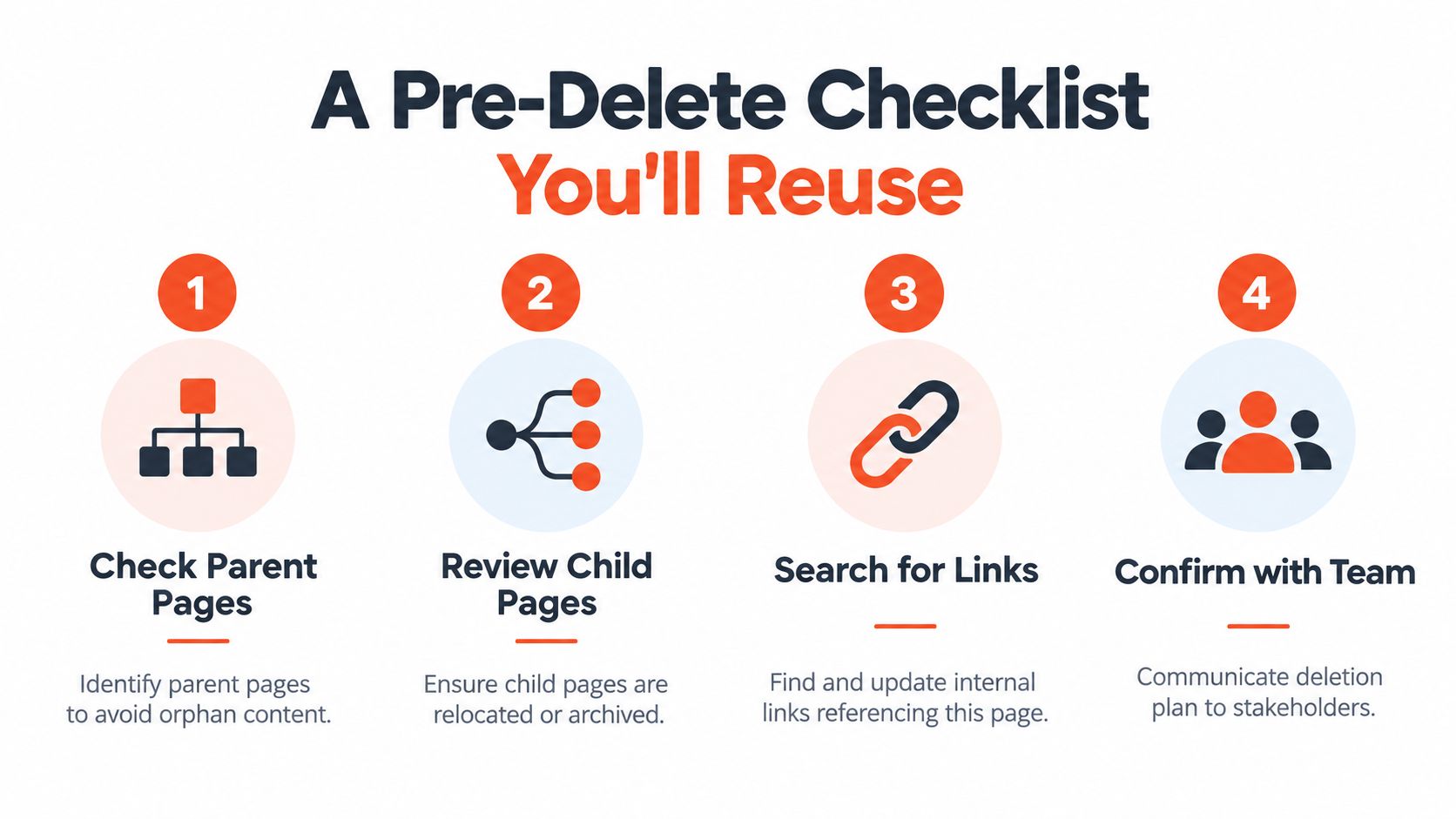
Then check references and recovery ownership:
- Check inbound links: Use the page information panel and search for pages, macros, and navigation elements that reference the content.
- Review child pages: Decide whether each child should move, remain accessible, be archived, or be deleted separately.
- Confirm retention: Know whether your space uses version-count rules, age-based rules, or trash purging, and understand when recovery will stop.
- Assign a backup admin: Make sure another administrator can restore the page if you're unavailable.
- Preserve valuable content: Export a PDF or XML backup when the page has compliance, policy, or historical value.
- Tell affected owners: Notify the people responsible for linked pages and dependent documentation before removing a shared hub.
The delete path should match the certainty of the decision. Use the UI when you want a visible, reversible action. Use the REST API for repeatable cleanup only after testing the selection logic. Reserve purge for content that has passed review and no longer needs a recovery window. For teams documenting these procedures, embedded product walkthroughs can make the correct path easier to follow without giving every contributor destructive permissions.
Admin habit: No page gets purged until its links, children, owner, retention status, and recovery plan are clear.
Rendemo helps teams turn admin procedures into clickable product walkthroughs, so people can follow the correct Confluence deletion path instead of guessing through menus. Create a guided flow for your cleanup process, share it with teammates, and visit Rendemo to see how it works.
See it instead of reading about it
Record one workflow from your real product and publish a clickable demo anyone can follow. Real-HTML capture is on the free plan.
Start free